How to Stop the “Uh Oh!” Email: Tech Tool Tuesday for Salespeople

Have you ever realized, immediately after hitting “Send”, that you have just sent an email to the wrong person?

Radio Advertising Salesperson horrified at computer
Photo by Flashgun/dpc

Not long ago, I wrote an email expressing significant concerns about a particular person – and, due to my own inattention, entered that person’s name as the recipient of the email. Luckily, I caught my mistake and corrected it before the email went out.

It was a very close call.

This prompted me to go to Google to see if there was a way to delay outgoing emails for a few minutes… just to buy myself a little time and prevent some heartache.

It turns out that Outlook, the program I use, offers a “delay” mechanism as an option. I knew that there was a way to delay individual emails, but it turns out that you can create a rule that delays all of your outgoing email.

You can find written instructions for delaying your email messages here. The instructions are a little tough to follow, so I’ve put together a short video to show you how it goes:

Direct link to the video is here.  I have used this method with Outlook 2013 and 2016 — I’m told it also works with Outlook 2010.

Instant gratification has a significant downside. There are many reasons why we might want to add a short delay to our outgoing emails:

  • We’re about to send it to the wrong person by mistake.
  • We’re about to Reply All by mistake (read about another tool, Reply to All Monitor here)
  • We’ve written a message in anger, or without thinking things through.

Making things just a little less instant by adding a short delay to each of our emails can prevent significant heartache.

Three Ways to Apply This Information Now

  1. If you have Outlook 2010, 2013 or 2016, watch the video and then set your own delay rule.
  2. If you use a different email service, Google “How to delay outgoing emails in [name of your service]”.
  3. Share this article on your favorite social media site.

[reminder]What’s the worst email you ever sent — or stopped at the last minute?[/reminder]

How to Find the Money: A Powerful 3-Question Process to Learn the Client’s Budget

It’s tough to ask “the budget question” on a sales call, especially with a new prospect. The client doesn’t know you, doesn’t trust you yet, and may be reluctant to give you the information.

sales find the money
Photo by vvoe/dpc

Many salespeople don’t ask at all. This is a big mistake.

If you don’t ask, you won’t know.

In my day job, I teach sales skills to radio and television station advertising salespeople. I train them to break the question into three parts.

Part 1: Ask Permission

Part 2: Ask About the Process

Part 3: Ask For the Number


Permission: “Can I ask you a few questions about your advertising plans?”

This question comes well into the meeting. By this time, we’ve already covered many other aspects of the client’s business — history, inventory, customer demographics, business philosophy — pretty much everything except that which we’ve come to sell.

If we’ve done this properly, we’ve begun to establish some rapport and trust, and the customer is beginning to let down his guard. If we just jump in and ask, “What’s your advertising budget”? the door could slam closed again.

Asking permission seems polite and considerate. The client will virtually always say yes. This obligates them to answer the next question.

Process: “Things are going pretty well for you these days, but you never know what’s coming next. You don’t know what the economy’s going to do… you don’t know what the weather’s going to do… you don’t know what the government has planned for you next.

But at some point every year, even with all this uncertainty, you have to decide how much you can spend on advertising. How do you come up with that number?”

The three factors mentioned above — economy, weather, and government — affect just about any business. Before asking for the number, we’re expressing some empathy and asking the client to open up about how they come up with the budget. We’re not ready to ask for the number yet. First we acknowledge the difficulty any company owner or executive has in predicting the future.

Some customers have a formula (usually a percentage of revenue) that they stick to. Others have a dollar figure handed to them from above. A surprising of businesses have no process at all, and just fly by the seat of their pants.

Whatever the case, knowing how they get to the dollar figure is as important as knowing the number itself.

The Number: “Okay, thanks for that. So for all the advertising you do — radio, television, digital, newspaper, magazines, billboards, Yellow Pages, and anything else — how much do you think you’ll spend this year? [Some clients won’t know a yearly figure; in that case, you can ask them to estimate how much they spend per month.]

By this time the client’s given you permission to ask, along with some insight as to the budget process. It won’t happen every time, but the odds have become much greater that they’ll tell you what you want to know.

[reminder]Do you find yourself reluctant to ask about the money? How do you deal with that?[/reminder]


Three Ways To Quickly Convert Video Files: Tech Tool Tuesday for Salespeople

There are lots of video formats out there, and lots of devices to play them on. At some point, you’ll be faced with a video file that won’t play on your device. Here are three options to look at:

[featured-image single_newwindow=”false”]

Any Video Converter and Any Video Converter for Mac —   Any Video Converter is freeware  that converts videos from one format to another. There are also fancier paid versions for each operating system. I use the free Windows version to convert .mpg files, which don’t play on my laptop, to .wmv files, which do. Warning: some users have reported online that the free version plants unwanted programs on their computers. I have strong anti-virus and anti-malware on my machines, and haven’t had a problem. Your mileage may vary — as with all software you download, use caution.

Azul — As much as I love my iPhone and iPad, I am occasionally reminded that Apple and Microsoft don’t always play well together. For example, when I want to play a Windows Media file on my tablet. Azul is a media player for iOS devices. It has a lot of bells and whistles, but my primary use for it is to play videos when the iPad or iPhone’s regular player won’t.

Zamzar — a web-based alternative if you need to convert video files, can wait a little while for them, and don’t want to put a product like Any Video Converter or Azul on your device. Zamzar claims to support 1200 video and audio formats. You upload your file, specify the format you’d like to have the file in, plug in your email address, and wait. A short time later (usually within 10 minutes) you get an email with a download link. The basic version is free, but limits you to files of 100MB or less. If you have larger files, there are several paid plans.

[reminder]Got a favorite tech tool you’d like me to review?[/reminder]

Voice Mail: Not Dead Yet? Here Are The Survey Results

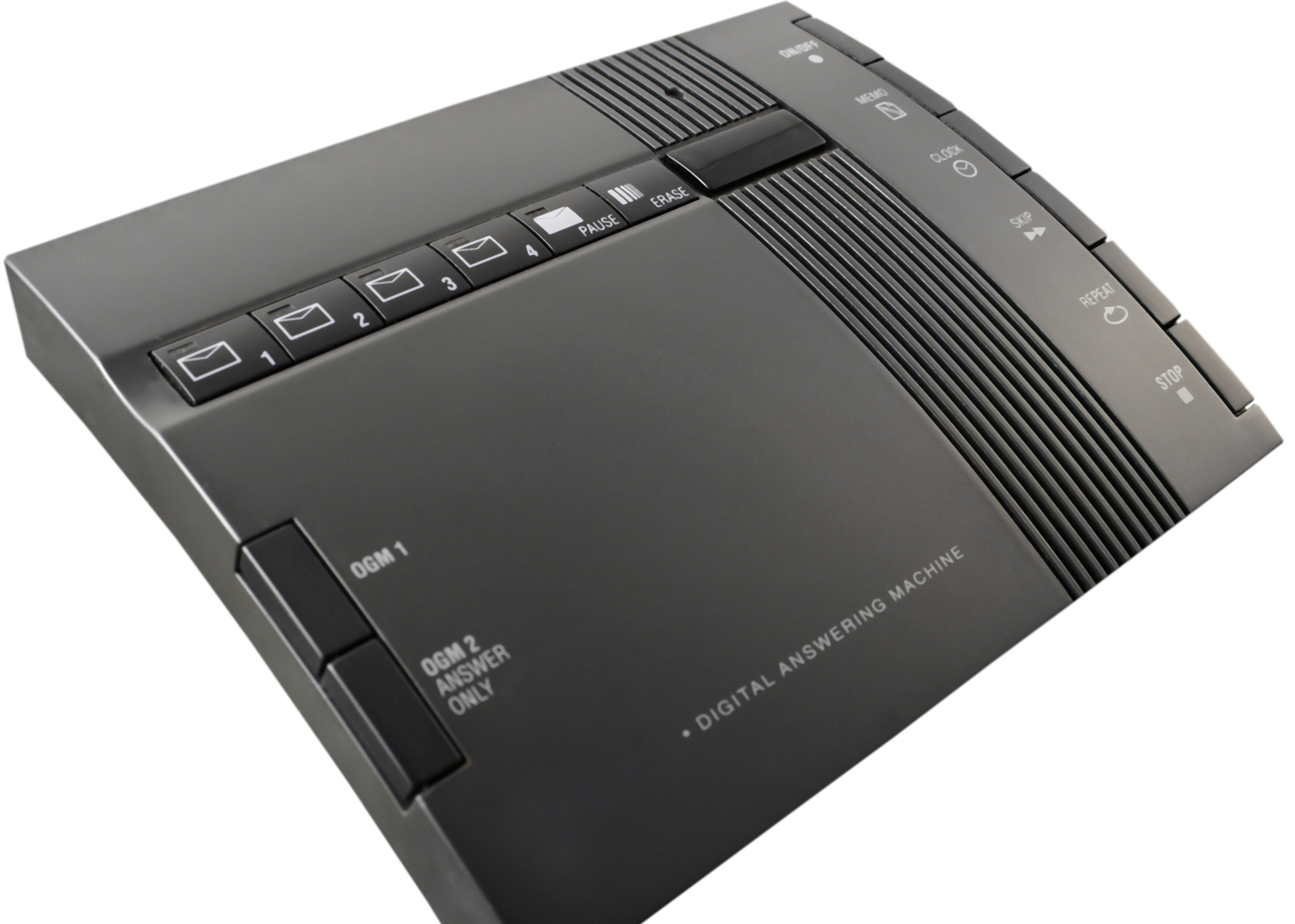
According to my  readers, voice mail still has some life to it. Nearly 90% of the people who took the poll still listen to their messages at least some of the time.

[featured-image single_newwindow=”false”]
Photo by Qilux/DPC

49.28% — Almost exactly half said that they “always listen to their voice mail messages.”

40.58% –  eported that they “sometimes listen to their voice mail but sometimes just look at caller ID and call back”.

10.14% – A mere tenth of the respondents said that they never listen to their messages.

A powerful defense of voice mail comes from Leslie Horn, a writer in her 20’s who wrote an essay for Gizmodo called You’re Wrong About Voicemail. Reflecting on the unexpected death of her father, she had this to say:

…I can’t think about voicemails without bringing the whole thing back to my dad once more. The dude had a goddamn calendar full of people he would call on their birthdays. From what I’ve learned in the past couple of months, it numbered in the hundreds. If he knew your birthday, he would call you on it and sing happy birthday. He had what I would call a church choir voice. Which is to say, not great, but he would belt it out nonetheless. If you picked up, he’d sing your ear off. If you screened, he’d sing it to your voicemail.

In the past three months, I’ve had untold numbers of people approach me and tell me they had messages from my dad on their phones singing them happy birthday. Happy birthday to Mark! Happy birthday to Suzanne! Happy birthday to Margaret! Happy birthday to family and friends and to people I don’t know from Adam! Shoot, I’d think every time, why didn’t I listen to my voicemails more? Until one day, I poked around in my deleted folder and found my happy birthday message from last year, saved. There it was! I hadn’t meant to save it, but there it was.

A personal note: my parents have sung to me over the phone on my birthday for years. Possibly decades. They’ve done it “live” if I answered the phone, on voice mail if not. I’ve always rolled my eyes good-naturedly as it happened. It never occurred to me to save the messages. Until now.

[reminder]Got a story of voice mail in your life? A drunk dial, perhaps. Or an “I didn’t realize it was recording” tale of woe. You know the story I mean. [/reminder]


29 (Mostly) Dirt-Cheap Apps, Gadgets and Downloads I Use: A Salesperson’s Toolbox

I’ve been selling long enough to remember the days when only senior executives had “car phones.” Back then, if somebody wanted to reach me they left a message at my office with the receptionist, and I returned the call after I got back.

[featured-image size=”featured” single_newwindow=”false”]

Now, I’m connected 24/7. Smartphone, tablet, laptop, desktop, Kindle. It’s rare that I’m not operating at least one of these devices, and sometimes more than one. It’s a challenge to manage a constant flow of information coming at us from all angles in a wide variety of formats.

I’ve written an e-book called A Salesperson’s Toolbox, featuring 29 apps, gadgets and downloads I use to stay on top of it all. Some only work on one platform; some work on all of them. Among the items are:

  • An online calendar service that lets me share my appointment availability with multiple clients, keep all of them automatically updated as my schedule changes, and avoid double-booking.
    .
  • Two great sources of fully-licensed stock photos — one free, and one dirt-cheap.
    .
  • A phone app that tracks my expenses and prepares reports — and makes sure I never lose a receipt.
    .
  • … and a $15 piece of software I use when I need to disconnect and get my work done.

At the time of this writing, I am using every single one of these regularly — and am always on the lookout for something better.

A Salesperson’s Toolbox isn’t for sale. The only way for you to get it is to subscribe to my free email newsletter. Here’s what you need to do:

If you are not already a subscriber, click on the button below, fill in your email address, confirm your subscription, and download your copy of A Salesperson’s Toolbox.

Easy? Easy! Here’s the button:

Click Here to Get Your E-Book

Whenever I put up a post, I’ll send you an email so you don’t have to keep returning to this blog. You can unsubscribe at any time, and my feelings won’t be hurt… much.

Already a subscriber? Don’t worry…. there’s a button for you, too! It’ll let you send me a quick email, and I’ll send you back a link to the e-book.

[button href=”mailto:phil@philbernstein.com” primary=”true” centered=”true” newwindow=”true”]Already a Subscriber? Click Here and Ask Me For The Book![/button]

PS: Your work goes much faster when you have the right tools for the job.

Get A Salesperson’s Toolbox today, and be more productive tomorrow. You can thank me later.