How to Prevent Email Heartache — Establishing An Automatic Delay

Have you ever sent an email you regretted? Have you ever realized, immediately after hitting “Send”, that you have just sent an email to the wrong person?

Radio Advertising Salesperson horrified at computer
Photo by Flashgun/dpc

A while back, I wrote an email expressing significant concerns about a particular person – and, due to my own inattention, entered that person’s name as the recipient of the email. I caught my mistake and corrected it before the email went out.

The very close call shook me up, and prompted me to go to Google.

I wondered if there was a way to delay outgoing emails for a few minutes… just to buy myself a little time and prevent some heartache.

It turned out that Outlook, the program I use, offers a “delay” mechanism as an option. Id known that there was a way to delay individual emails, and was delighted to learn you can create a rule that delays all of your outgoing email.

You can find written instructions for delaying your email messages here. The instructions can be a little tough to follow.  A few years ago I put together a short video, and this method still works for the most recent versions of Outlook.

I made the video using Outlook 2013 a few years ago — but the method works the same way on the most versions of Microsoft Office, including Office 365. Direct link to the video is here.  

Instant gratification has a significant downside. There are many reasons why we might want to add a short delay to our outgoing emails:

  • We’re about to send it to the wrong person by mistake.
  • We’re about to Reply All by mistake.
  • We’ve written a message in anger, or without thinking things through.

Making things just a little less instant by adding a short delay to each of our emails can prevent significant heartache.

Three Ways to Apply This Information Now

  1. If you have Outlook  2013 or 2016, or Office 365, watch the video and then set your own delay rule.
  2. If you use a different email service, Google “How to delay outgoing emails in [name of your service]”.
  3. Share this article on your favorite social media site.

[reminder]What’s the worst email you ever sent — or stopped at the last minute?[/reminder]
A Couple of Good Contact-Grabbing Apps: Tech Tool Tuesday for Salespeople

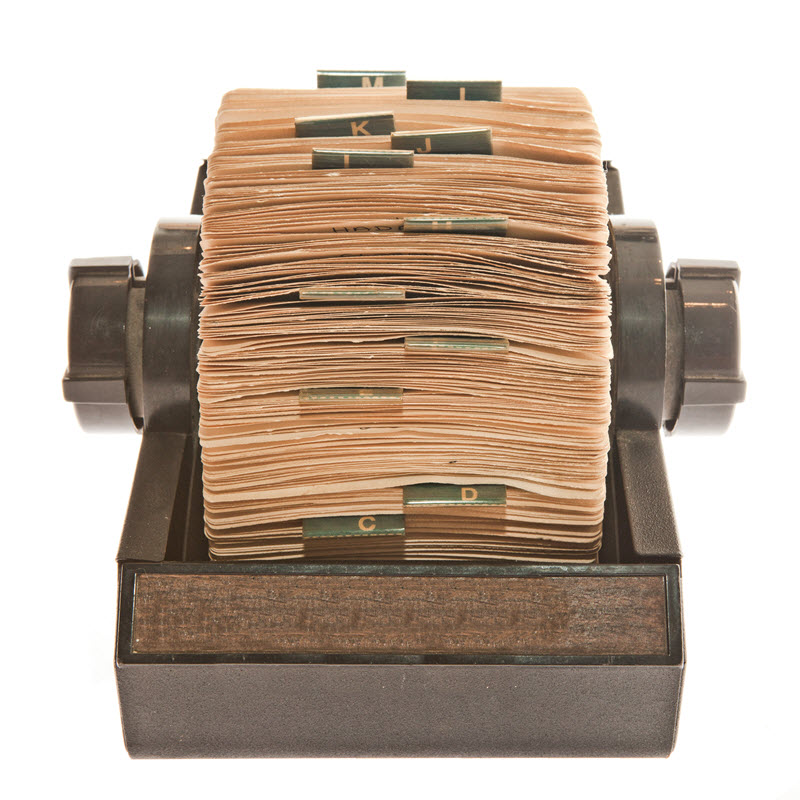
In the dark ages, we had a Rolodex. It was stuffed with business cards, which we collected everywhere we could.

When we had time, we entered the contact information manually into our computers.

Rolodex -- an obsolete sales tool
Photo by Stockninja/dpc


Automation has come to this process, and smart salespeople use it. For several years, I had two tools the got the job done:

  • CardMunch, a LinkedIn product that was, in its prime, an excellent business card scanner for the iPhone.
  • I used Gwabbit to pull contact information from emails.

Unfortunately, LinkedIn stopped supporting CardMunch, and it was eventually shut down. Meanwhile, Gwabbit never got around to supporting Outlook 2013, which ultimately made it useless. I have been looking for alternatives ever since, and have found a couple that get the job done.

A Very Good, But Spendy, PC Tool for Salespeople

I’ve been using AddressGrabber Standard for a couple of weeks on my laptop, and like a great deal. It is very simple to use – when you receive an email from a new contact, you highlight the information that needs to go into your contact manager (for me, Outlook 2013), click an icon to transfer the information, proof it, and save. It’s quick, simple to use, and pretty darn accurate. Occasionally information will go into the wrong fields, but the corrections are easy to make.

This is a huge timesaver when you start working with multiple contacts in a new company. When I start a revenue initiative with a new TV station, I ask all of the account executives and sales managers to send me an email. Then I go through the emails and drop the contact information in Outlook. The whole process for a 10-person sales staff might take me three or four minutes.

Two minor drawbacks: it will not recognize contact information from images, and if your contact doesn’t include their email address in their signature line, you have to enter it by hand. One major drawback: at $69.95 for a single machine license, AddressGrabber is expensive. But it works.


A Pretty Good Free Smartphone Tool For Salespeople

Evernote has had business card scanning built into its smartphone app for quite some time. Earlier this year it released a separate app called Scannable, which has many uses. For me, the most common use has been business card scanning.

Scannable is very simple to use – put the card on a contrasting background, and it will automatically detect the card and snap a picture. If you are an Evernote user you can upload the card to Evernote, and if not you can email or message the information. If you authorize a connection to your LinkedIn account, you can even make a LinkedIn connection right from the app.

Scannable’s major drawback is accuracy. Where CardMunch used actual human beings to double-check everything, Scannable is completely automated, and in day-to-day use I would rate it about 60% accurate. Once the information is entered, you need to proof it carefully, and it is not uncommon to need to clean up a few things. For a single card, entering by hand may be just as fast.

But if you have multiple cards to process it once, Scannable is a much faster option even when you take into account the necessary proofing. While there is significant room for improvement, Scannable is the best tool I have found since CardMunch went away.

One other note: as of this writing, Scannable is not available for Android. Evernote does have a business card scanner built into their main Android app, and there are certainly other options available.


In 2015, you shouldn’t have to enter contact information by hand. Automate the process, and use the time you save to sell.

[reminder]What are you using to capture contact info?[/reminder]


A Free Tool To Make it Easier For People to Tweet Your Content

This is particularly good for bloggers, but can work for other online platforms as well. And you can’t beat the price — it’s free!

radio sales tip: get people to tweet your wisdom
phot by luismolinero

Tech Tool Tuesday for Salespeople

ClickToTweet is a website that makes it easy for readers to tweet sentences from your blog or web post. It does so by generating a link that you can add to the post. You need to choose the sentence — keep it to 120 characters or less to enable retweeting.

I learned about ClickToTweet from a recent Heinz Marketing blog post, and have had occasion to use the feature on my blog and also a couple of LinkedIn posts. I don’t know how Matt Heinz uses it, but I’ve found that the “Basic Link” feature is the easiest way to go.

Here’s a video of me producing a “Tweet This” link.

https://www.youtube.com/watch?v=kOkz_kJgH90


The tweet: From the @philbernstein Sales Blog, a free tool to make your content tweetable.   Tweet This!

If you want to see if it worked, click the “Tweet This!” above. You’ll need to be logged into Twitter to see it in action. Go ahead, Tweet It!  I’ll wait here.

Of course, in order for it to work, the message needs to be something that your readers want to tweet. 

Try it for yourself and let me know how it worked for you. Then keep the conversation going — share this post on LinkedIn!


Embed Sites on Your Website with Embedly: Tech Tool Tuesday for Salespeople

When is a link to an article more than just a link? When you can embed it into your web page.

radio salespeople gain knowledge with sales training
Photo by Rawpixel/dpc

I recently discovered an online tool called Embedly that can embed an article onto a web page. From the looks of the Embedly website, it can do more than that; I’ve only been using it for a few days, and this feature is cool enough to write about.

It started when I wound up, in a feat of lucky timing, on national television (you can read about that adventure here). After the story ran, NBC Nightly News posted it on the show’s website. I wanted to post the video on my blog, but (unlike YouTube), NBC has blocked embedding — if you want to watch one of their clips, they want you to do it on their site.

I didn’t want to just post a link; a round of Google searching took me to Embedly. The process is pretty simple:

  1. Plug in the URL of the site you want to embed. Embedly generates some HTML code, and shows you how the image will look.

  2. Copy the code, and paste it in your website.

A quick demonstration video:

https://www.youtube.com/watch?v=smuF_CO6e50
Here’s how the NBC Nightly News clip looks when I embed it on my blog.

Only in Portland Would the Airport’s Carpet Reach Cult Status

A few other examples I tried as I experimented follow.

A television advertising sales training program website:

Jim Doyle & Associates

Information about knitting patterns:

Coming soon: Criss Cross Hat, Beret, Mitts
A New York Times article:

SkyMall Stumbles as Airlines Hone Their Sales Pitches

You can also “pretend  embed” the video into an email. The example below is not a true embed: I took a screenshot of the image, copied it into my email, and then established a hyperlink.

email with embedded article


Although Embedly offers several paid plans, everything I did above came from their “free” service.

[reminder]Is there a tech tool you’d like me to try and write about? [/reminder]

How to Stop the “Uh Oh!” Email: Tech Tool Tuesday for Salespeople

Have you ever realized, immediately after hitting “Send”, that you have just sent an email to the wrong person?

Radio Advertising Salesperson horrified at computer
Photo by Flashgun/dpc

Not long ago, I wrote an email expressing significant concerns about a particular person – and, due to my own inattention, entered that person’s name as the recipient of the email. Luckily, I caught my mistake and corrected it before the email went out.

It was a very close call.

This prompted me to go to Google to see if there was a way to delay outgoing emails for a few minutes… just to buy myself a little time and prevent some heartache.

It turns out that Outlook, the program I use, offers a “delay” mechanism as an option. I knew that there was a way to delay individual emails, but it turns out that you can create a rule that delays all of your outgoing email.

You can find written instructions for delaying your email messages here. The instructions are a little tough to follow, so I’ve put together a short video to show you how it goes:

Direct link to the video is here.  I have used this method with Outlook 2013 and 2016 — I’m told it also works with Outlook 2010.

Instant gratification has a significant downside. There are many reasons why we might want to add a short delay to our outgoing emails:

  • We’re about to send it to the wrong person by mistake.
  • We’re about to Reply All by mistake (read about another tool, Reply to All Monitor here)
  • We’ve written a message in anger, or without thinking things through.

Making things just a little less instant by adding a short delay to each of our emails can prevent significant heartache.

Three Ways to Apply This Information Now

  1. If you have Outlook 2010, 2013 or 2016, watch the video and then set your own delay rule.
  2. If you use a different email service, Google “How to delay outgoing emails in [name of your service]”.
  3. Share this article on your favorite social media site.

[reminder]What’s the worst email you ever sent — or stopped at the last minute?[/reminder]